Usage
Button dropdowns are used when there is a set of closely related actions available to the user, or as a solution to consolidate the number of actions that appear on the screen. Clicking the button dropdown opens an action list where the user can select an action or shift focus off the button to close the list. They are commonly seen within tables due to space restrictions.
When to use Button Dropdowns
- When three or more closely related actions are available
- When space is limited — such as within a table; use link style in this context
- When a card or page header has more than two actions — use a button dropdown to avoid visual clutter
Don't use Button Dropdowns when
- There are two or fewer actions — use individual
zui-buttonelements instead - Actions should be immediately visible to users — use
zui-buttonorzui-button-groupinstead - The user is making a selection rather than executing an action — use
zui-selectorzui-select-dropdowninstead - The list of actions is very long — consider grouping related actions
Anatomy
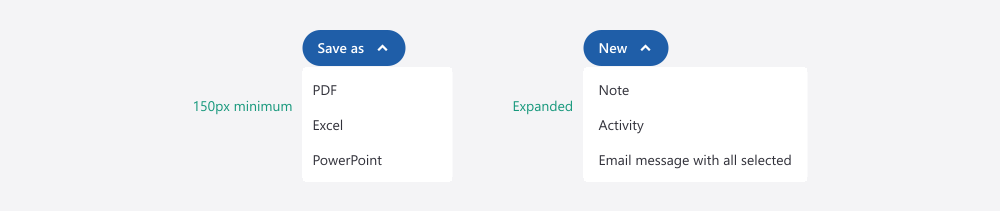
A button dropdown consists of a button and a list of actions.

- Button: The trigger element. See Button documentation for button styles
- Chevron: Text buttons contain a chevron to indicate that actions are available
- Action list: A grouping of actions that appears after the button is clicked
- Action: Clicking an action executes it
The width of the action list is, at minimum, 150px wide. The width of the list can expand, maintaining 15px padding on each side, should one of the actions exceed the 150px minimum.
Types
Standard button dropdown
A button with a chevron icon to the right of the text label. Can be primary, secondary, or link style. Once active, a dropdown opens to display actions.
When to use
- When actions can be labeled with a descriptive term that represents the group
- When users benefit from seeing the action category before clicking
Guidelines
- Keep the label to 1–3 words
Icon button dropdown
An icon button (most commonly the "more" icon) without visible label text. Can be primary, secondary, or link style. Once active, a dropdown opens to display actions. Use the icon attribute to enable this mode.
When to use
- When space is very limited, such as in a table row — use link style in table contexts
- When the icon (typically
zui-more) clearly communicates that a menu is available
Guidelines
- Always provide
aria-labelon the<zui-button-dropdown>when using icon mode — e.g.,aria-label="Row actions" - Use the
zui-moreicon as the default for unspecified action groups
Action list with icons
Pair icons with text labels for clear and easy recognition of actions in the dropdown. Icons appear to the left of the text label within the dropdown.
Guidelines
- Include icons with all actions or none — never mix icon-accompanied and iconless actions
States
Button dropdowns have states for both the button and the action list.
Button

- Default — Resting state. The button's appearance before any user interaction
- Hover — Visual feedback when a pointing device is over the button. Displays hover styling from the Button component
- Focus — Appears when the button is currently selected and awaiting action. This commonly occurs when using a keyboard to navigate. A visible focus ring is required
- Active/open — Button is being clicked. The action list is visible and the chevron rotates 180°
- Disabled — Indicates the button action is currently unavailable. Disabled buttons should only be used when an action can be taken within the current UI to enable the button. If no action can be taken, the button should be hidden instead of disabled
Action list
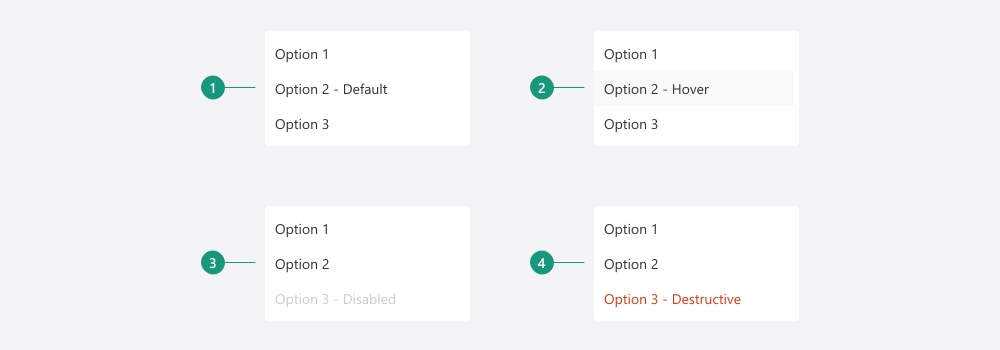
- Default — Resting state, ready for interaction
- Hover — Background changes to indicate interactivity
- Disabled — Cannot be clicked. Appears dimmed with lower opacity. Cursor shows "not allowed"
- Destructive — Styled with error color to indicate dangerous operations. Must not rely solely on color to convey danger — use a combination of color, icon, and/or text label
Behavior
Placement and alignment
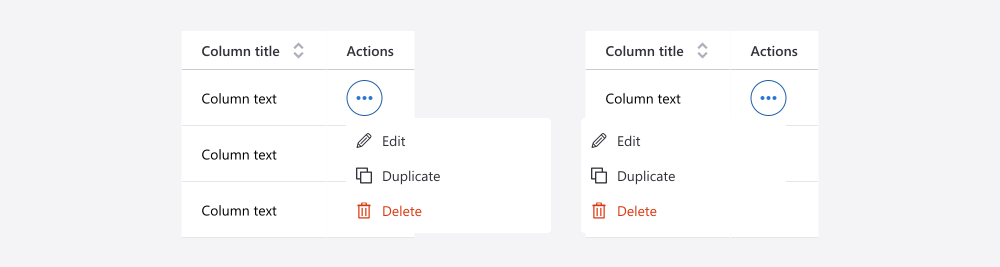
- Depending on the placement of the button dropdown and the space available, the action list can appear either left-aligned, right-aligned, or above if there is not enough space in the viewport to open below.
Overflow and layering
- The action list must appear above any components in z-space — it should not push items downwards on the page when open.
- The action list must not be confined to the container in which it was triggered — it can extend over the edge of a card or table.
Destructive actions
When an action list includes a destructive action such as "Delete" or "Remove":
- Place the destructive action at the bottom of the list
- Style it using
--zui-red-500to signal danger
Content guidelines
Button label
The trigger button label must communicate the category of actions inside the dropdown.
Effective labels are
- Verb-based
- Sentence case: "Add record" not "Add Record"
- Concise: 1–3 words maximum
Writing style
- Avoid vague labels that give no context — "Click here" or "Do something" do not help users
Action labels
Each action in the dropdown list must be an action-oriented label.
Effective labels are
- Verb-first: "Edit", "Delete", "Download report"
- Specific: "Delete policy" not just "Delete"
- Sentence case with no ending punctuation: 1–4 words
Responsiveness
Mobile considerations
On narrow screens, use full-width button dropdowns to maximize touch area. Avoid full-width in multi-column layouts or where multiple buttons appear side by side. See Full-width button for additional guidance.
For more information about mobile and touch device breakpoints, see the breakpoints table.
Best practices
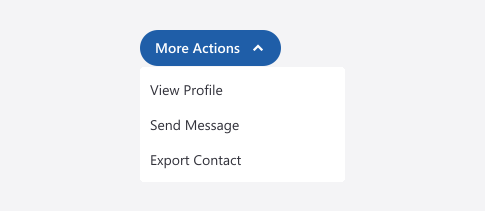
Use a clear, actionable umbrella term for all actions available in the dropdown
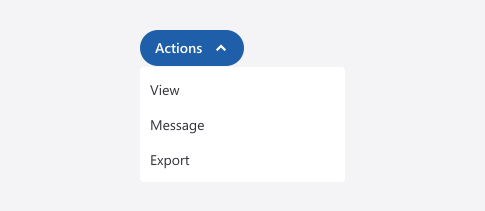
Use a term that is too vague and does not provide clarity about the actions available in the dropdown
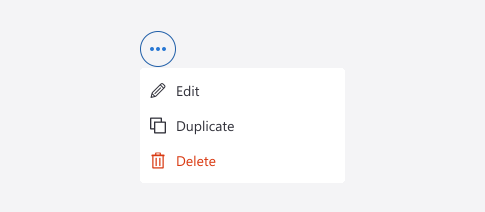
Use icons that are easily recognizable and clearly represent the action list
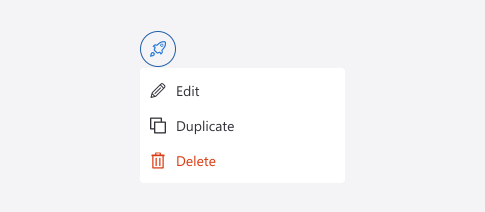
Use icons that are unclear or are unrelated to the list of actions
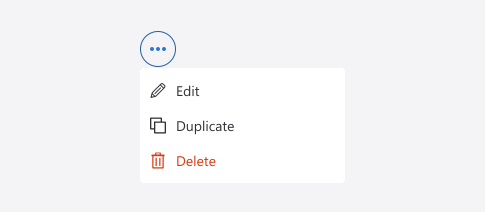
Include icons with all or none of the actions in the dropdown list
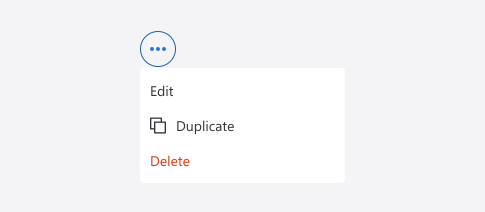
Include icons on only one or some of the actions
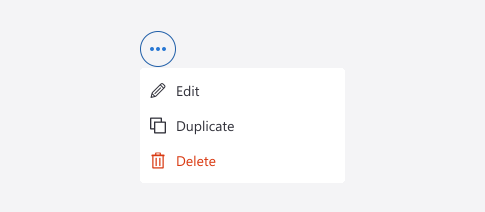
Place destructive actions at the bottom of the list and style them using --zui-red-500
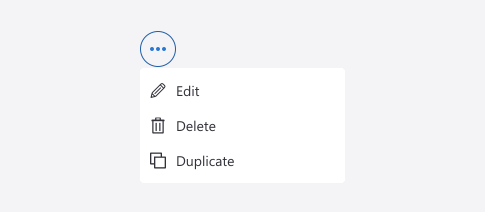
Place destructive actions at the top or middle of the list or style them the same as other actions
Accessibility
Keyboard navigation
- Tab: Move focus to the trigger button
- Enter or Space: Open the dropdown
- Arrow Down / Arrow Up: Move focus between actions when the dropdown is open
- Enter: Execute the focused action and close the dropdown
- Escape: Close the dropdown and return focus to the trigger button
Screen reader announcements
- The trigger button is announced with its visible label or
aria-labeland its button role - When the dropdown opens, assistive technology announces the menu and the first focused action
- Each action is announced with its label as a menu item
ARIA requirements
role="button"on the trigger — must have a visible label oraria-labelwhen using icon-only mode (e.g.,aria-label="Row actions")role="menuitem"on each action
Alternate considerations
Consider these alternatives when a button dropdown isn't the right choice.
When to use zui-button instead
- There are one or two actions — individual buttons are more discoverable and require fewer clicks
When to use zui-button-group instead
- Multiple related actions need to remain visible side by side — use
zui-button-groupto present them as a unified set
When to use zui-select-dropdown instead
- The user is choosing a value rather than executing an action — use
zui-select-dropdownso the selection populates a form field